
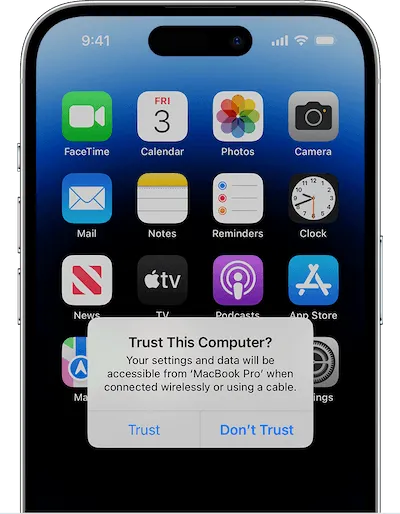
When I connected my iPhone 13 Pro to my Macbook Pro using a cable, a "Trust" prompt kept repeatedly popping up on the iPhone's screen, preventing a successful connection with the Macbook. I tried changing cables, rebooting the iPhone, and restarting the Macbook, all to no avail (Click here to view Apple's official suggestions for resolving this issue). Eventually, I found an effective solution through Google: disable USBD service.
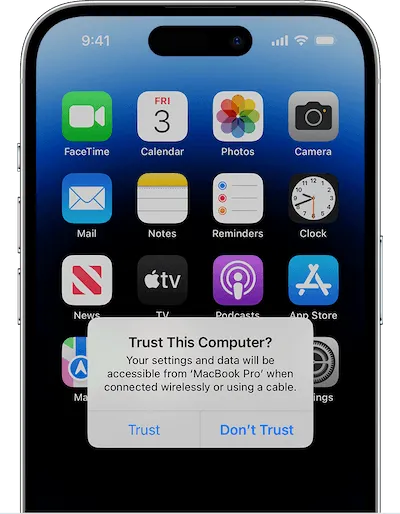
To disable and enable the USBD service, you can follow these steps. To disable USBD service 1. Open Terminal and enter the following command:
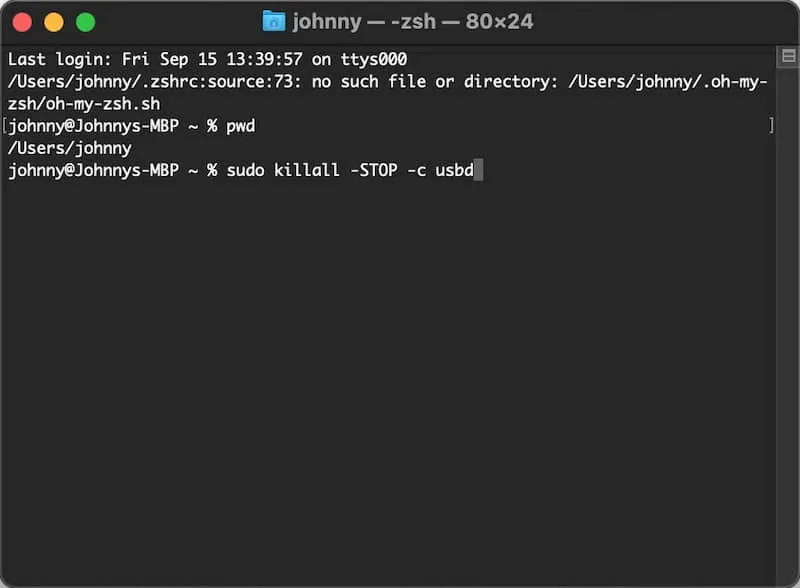
sudo killall -STOP -c usbd2. Press Enter and then input your password.
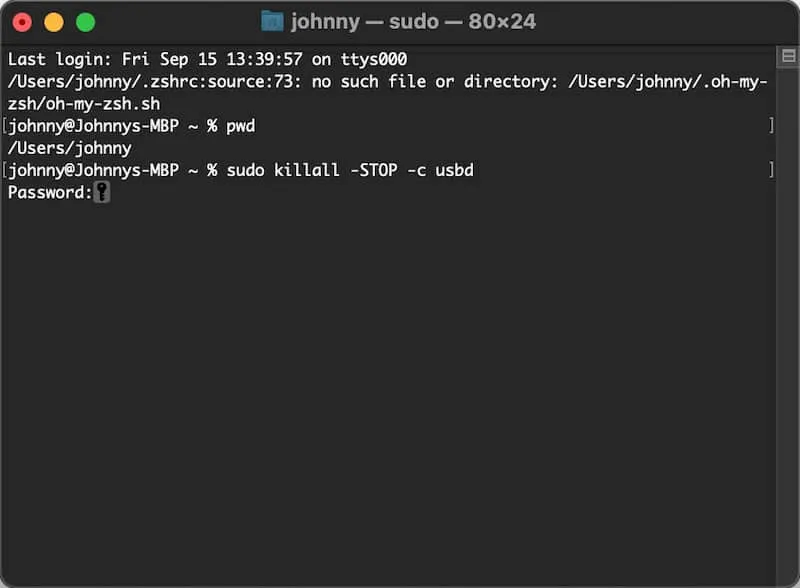
Note that the password will not be visible while you're typing it.(The password to use is the one you set during boot-up.) To enable USBD service 1. Open the Terminal app again if it's not already open. 2. Type the following command:
sudo killall -CONT usbd3. Press Enter. By performing these steps, you should be able to disable and then re-enable the USBD service, which can potentially solve the issue of the "Trust" prompt repeatedly appearing when connecting your iPhone to your Macbook.















Leave a Reply