
In my professional life, Excel is a staple for data organization, making the sorting of vast amounts of data a common necessity. The LEN function in Excel elegantly addresses this requirement: it swiftly calculates the number of characters in a text string, allowing me to sort the data based on the return values of the Excel LEN function. In 2023, I documented the intricacies of the LEN function in a blog post, "Excel – Sort Columns Based on Character Length (LEN Function)," which can be found here: EXCEL – SORT COLUMNS BASED ON CHARACTER LENGTH(LEN FUNCTION). Surprisingly, the keyword "excel sort by length" ranked on the second page of Google search results.
Believing in the practicality of Excel's LEN function, I decided to further refine and publish its detailed usage for the benefit of all.
LEN Function
In Excel, the LEN function is an extremely useful string function designed to count the number of characters in a text string.
Basic Usage of the LEN Function
Syntax =LEN(text) Parameters text: The text for which you want to count the characters. This can be a directly entered text string or a cell reference containing the text. Return Value The function returns the count of characters in text, including all letters, numbers, symbols, and spaces.
Example: Counting Regular Characters
Cell A1 contains the string Hello. In B1, I enter:
=len(A1)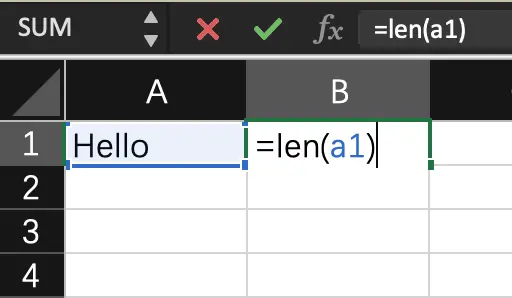
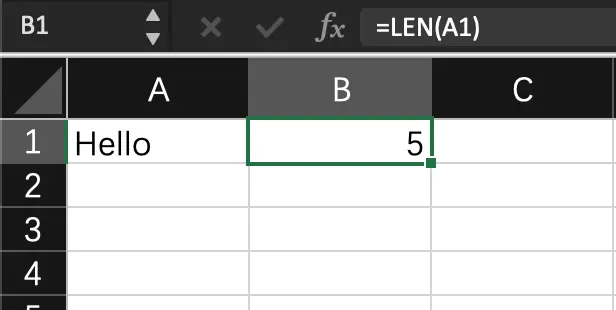
After pressing the Enter key, the LEN function in B1 returns the value 5.
Example: Including Spaces and Symbols
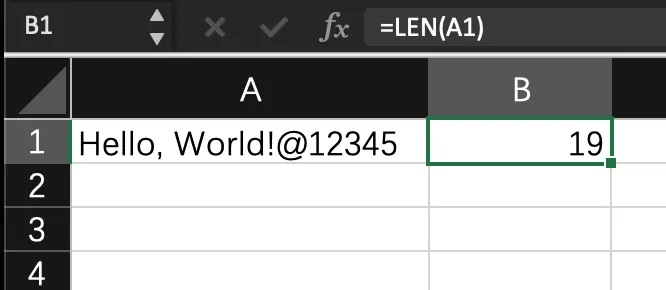
Cell A1 contains a mixed string Hello, World!@12345, which includes letters, numbers, characters, and punctuation. In B1, I input:
=len(A1)After pressing the Enter key, the LEN function in B1 returns the value 19.
Example: Combining with Other Functions - RIGHT
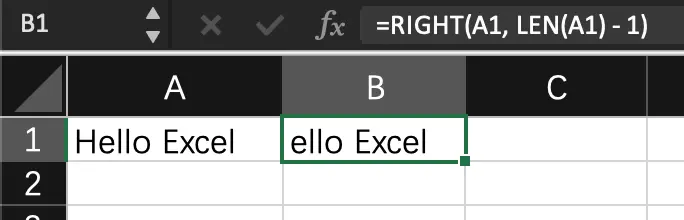
In Excel, LEN and RIGHT functions can be utilized together for intriguing text manipulations. The LEN function calculates the length of a string, while the RIGHT function extracts a specified number of characters from the right end of a string. By combining these two functions, one can achieve more flexible text processing. Usage of the RIGHT Function RIGHT Function: Returns a specified number of characters from the right end of a text string. Syntax: =RIGHT(text, [num_chars]) text is the text from which you want to extract characters. [num_chars] is an optional parameter specifying the number of characters to return from the right end of the text. If omitted, the default is 1. Removing the Last Character of a String You can use the LEN function to determine the total length of a string, then use the RIGHT function to extract all characters except the last one. For example, if cell A1 contains the text "Hello Excel", you can use the formula =RIGHT(A1,LEN(A1)-1) to return "ello Excel".
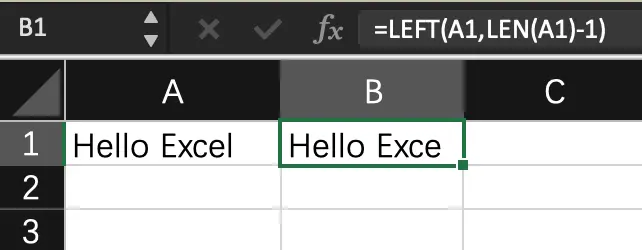
Corresponding to RIGHT is LEFT, as illustrated below: For instance, if cell A1 contains the text "Hello Excel", you can use the formula =LEFT(A1,LEN(A1)-1) to return "ello Excel".















Leave a Reply